
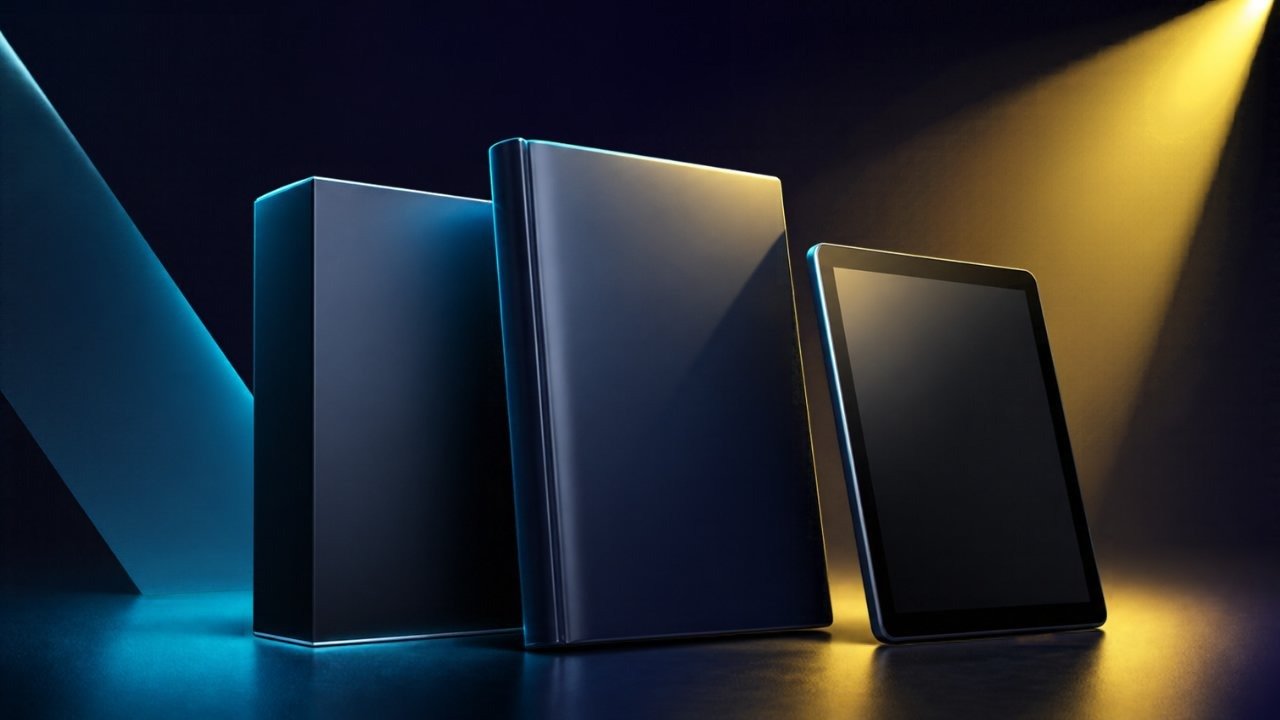
If you sell digital products, your first impression is usually an image. A flat rectangle of a cover design tells visitors very little, while a clean 3D box, book or device mockup makes a download look like something they can pick up. The trouble is that producing those images traditionally means Photoshop, template packs or a freelancer. This guide covers what makes a good product mockup, a simple workflow for producing one, and where eCover Elite fits if you would rather use a dedicated tool.
Why 3D product shots matter for digital products
Digital products have no physical presence, so buyers rely on the picture to judge quality. A 3D image helps in three practical ways:
- It signals a finished product. A boxed or bound mockup looks more considered than a screenshot of a PDF title page.
- It clarifies what is being sold. A book shape suggests an eBook, a disc case suggests software or video training, and a laptop or phone suggests a web-based tool or app.
- It works across channels. The same image can sit on a sales page, in a listing, in an email header and in social posts.
None of this guarantees more sales, and a good mockup will not rescue a weak offer. But a poor or missing product image is an easy thing to fix, and it is worth getting right.
Choosing the right shape for your product
Match the mockup to what the customer actually receives. Using a software box for an eBook, for example, can feel misleading.
Reports, guides and eBooks
A paperback, hardcover or thin report shape is the natural choice. Keep the front cover simple and legible, because it will often be viewed at thumbnail size.
Software and scripts
A software box or disc case is a familiar visual shorthand, even though the product is a download. Use it consistently across your catalogue so the range looks coherent.
Courses, memberships and web tools
Laptop, tablet and phone mockups with a screenshot on screen show the product in use, which is often clearer than a box.
Bundles
If you sell several items together, a scene that groups them in one image communicates value at a glance.
A simple workflow for a 3D eCover
- Design the flat front cover first. Use a readable title, two fonts at most, and strong contrast. Test it by shrinking it to roughly 150 pixels wide; if you can still read the title, it will survive on a listing page.
- Pick the model. Choose the shape that matches the product, as above.
- Set up spine and back. Boxes and books need these. Keep them consistent with the front in colour and typography.
- Adjust lighting and shadow. Subtle reflections and soft shadows give depth. Heavy gloss usually looks artificial.
- Export at the right size. Export larger than you need, then scale down for each use. A transparent background lets you place the image on any colour of page.
- Save a project file. When you update the product or launch a new version, you can swap the cover rather than rebuilding the scene.
Common mistakes to avoid
- Over-decorated covers. Busy gradients and effects make the title hard to read when small.
- Inconsistent angles. Mixing very different camera angles across a catalogue makes a shop look patchy.
- Low-resolution exports. A blurry image undermines the quality you are trying to show.
- Misleading imagery. Show what the customer will really receive. A mockup should present the product, not exaggerate it.
Where eCover Elite fits
eCover Elite is a Windows desktop application from Altratom that turns a flat cover design into a 3D product image. Going by the product page, it includes:
- 17 procedural 3D models, including boxes, a software box, hardcover and paperback books, a magazine, spiral notebooks, CD and DVD cases, business cards, flat and curved screenshots, and phone, tablet and laptop mockups.
- A built-in cover designer with nine styles, gradients, photo backgrounds, decorations and text layers, or you can use your own image for any face.
- Automatically generated spines, backs and discs based on your front design.
- Multi-item scenes for building bundle images.
- A floor reflection, soft shadow and adjustable light, gloss and camera.
- Export to PNG, JPG or WebP up to 8000 px, with transparent backgrounds, auto-crop and copy to clipboard.
- 12 starter templates, autosave and unlimited undo and redo.
It is described as lightweight, runs offline and is designed to work on older PCs. Licensing is a one-time purchase, with a licence key shown in your customer panel at altratom.com that activates on one PC; you can move it to another computer by deactivating it first. It requires Windows 10 or 11 (64-bit). Support is handled through tickets in your customer panel.
Like any tool, it will not design a good cover for you, but it removes the technical step of turning one into a clean 3D image.
Practical takeaways
- Match the mockup shape to the real product.
- Design covers to be legible at thumbnail size.
- Keep style, lighting and angle consistent across your range.
- Export large, with transparent backgrounds, so one image serves many uses.
- Keep editable project files so updates are quick.
Next step
If you want to try this workflow, have a look at the eCover Elite product page for the full feature list, or browse the rest of the Altratom shop for other software and scripts for online marketers.